




 How to failover to a back...
Dynu's System Monitoring & DNS Failover service helps you monitor critical services
from multiple geographic locations and automatically respond when downtime is detected.
This tutorial walks you through configuring automatic failover to a backup IP address
when your primary server goes down, and falling back to the primary IP once it recovers.
The approach uses two A records per hostname — one pointing to the primary IP (active by default) and one pointing to the backup IP (inactive by default). When a monitor detects that the primary server is down, failover actions automatically disable the primary A records and enable the backup A records. When the primary server recovers, the reverse actions restore the original configuration.
Follow these steps to set up failover between a primary and backup IP address for your domain and its www subdomain.
 Step 1 — Add the backup A records in Aliases
Log into the control panel, go to Dynamic DNS Services and click on your domain name to open the Manage Dynamic DNS Service page. Then click on Aliases.
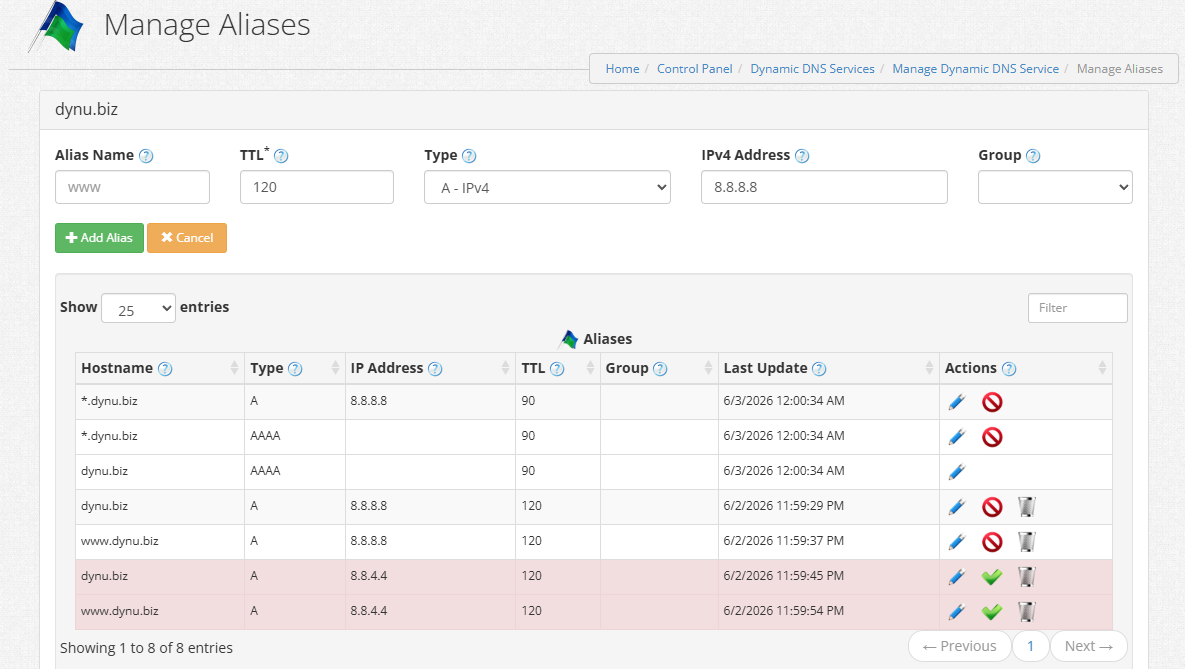
You should already have active A records pointing to your primary IP for both your root domain and www subdomain. You now need to add two additional A records pointing to your backup IP — one for the root domain and one for www.
For each backup A record, fill in the following fields and click + Add Alias:
Alias Name Enter the subdomain prefix. Use www for the www record, or leave blank for the root domain (shown as *).
TTL Set a low TTL such as 120 seconds to allow DNS changes to propagate quickly during a failover event.
Type Select A - IPv4.
IPv4 Address Enter your backup server's IP address (e.g., 8.8.4.4).
Once added, the backup A records will appear in the Aliases list highlighted in red, indicating they are inactive. The primary A records remain active. You should now have four A records in total:
 Step 2 — Open the Actions page for your monitor
Go to DNS Failover
and click on
Monitors.
Select the monitor you want to configure by clicking on its name. On the
Manage Monitor page, click the
Actions
button.
DNS Failover
and click on
Monitors.
Select the monitor you want to configure by clicking on its name. On the
Manage Monitor page, click the
Actions
button.
You will configure a total of 8 actions: 4 triggered when the monitor goes Down, and 4 triggered when it comes back Up.
Step 3 — Add "Down" actions to switch to the backup IP
Click + Add and configure the following four actions, one at a time. All four use State: Down.
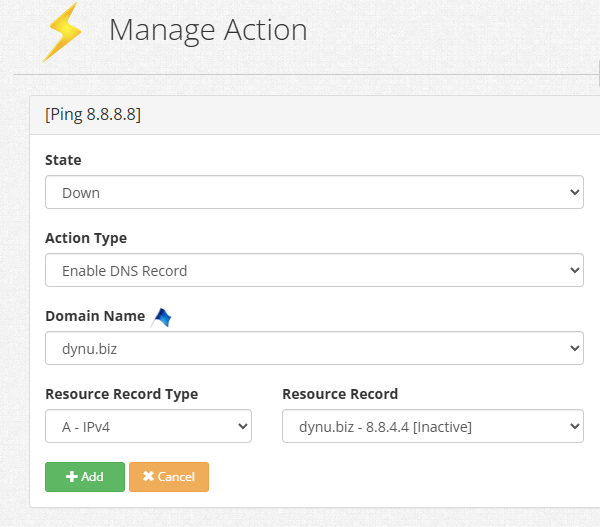
Action A — Disable the primary A record for the root domain:
State Down
Action Type Disable DNS Record
Domain Name dynu.biz
Resource Record Type A - IPv4
Resource Record dynu.biz - 8.8.8.8 [Active]
 Action B — Disable the primary A record for www:
Same as Action A, but set Resource Record to www.dynu.biz - 8.8.8.8 [Active].
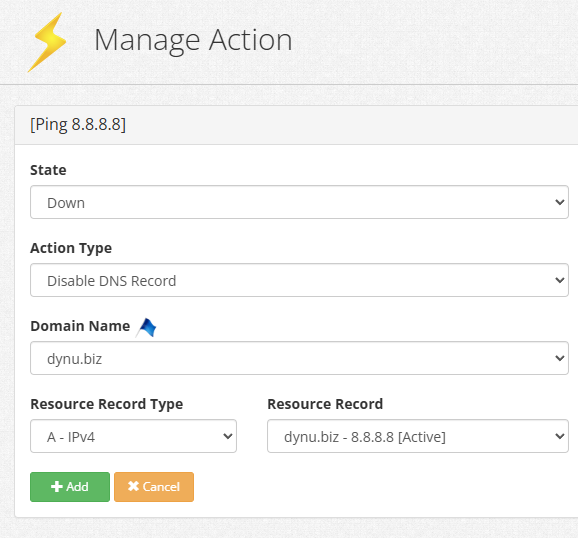
Action C — Enable the backup A record for the root domain:
State Down
Action Type Enable DNS Record
Domain Name dynu.biz
Resource Record Type A - IPv4
Resource Record dynu.biz - 8.8.4.4 [Inactive]
 Action D — Enable the backup A record for www:
Same as Action C, but set Resource Record to www.dynu.biz - 8.8.4.4 [Inactive].
Click + Add after configuring each action.
Step 4 — Add "Up" actions to restore the primary IP
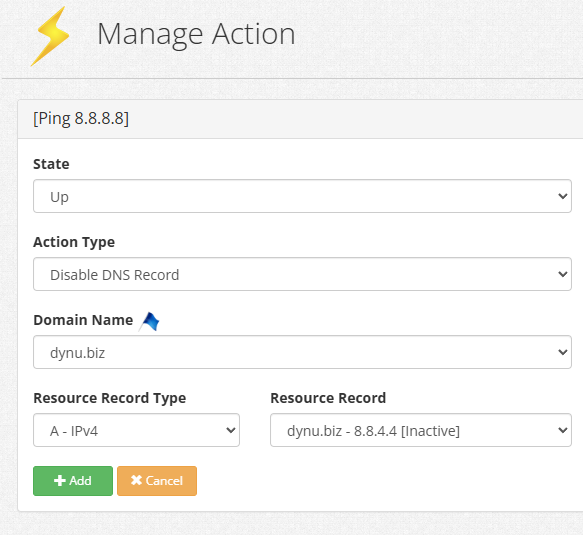
Click + Add and configure the following four actions. All four use State: Up.
Action E — Disable the backup A record for the root domain:
State Up
Action Type Disable DNS Record
Domain Name dynu.biz
Resource Record Type A - IPv4
Resource Record dynu.biz - 8.8.4.4 [Inactive]
Action F — Disable the backup A record for www:
Same as Action E, but set Resource Record to www.dynu.biz - 8.8.4.4 [Inactive].
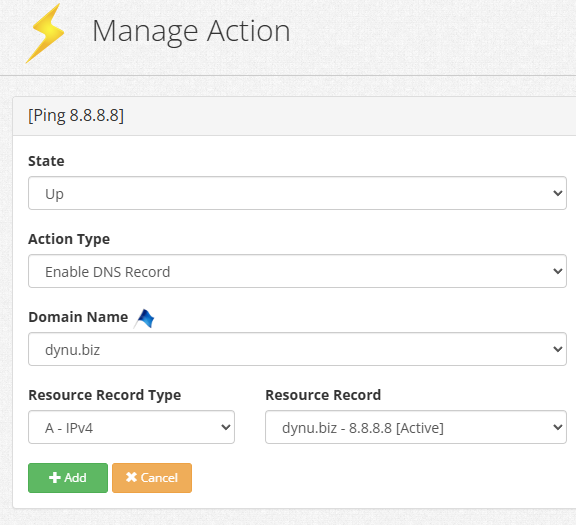
Action G — Enable the primary A record for the root domain:
State Up
Action Type Enable DNS Record
Domain Name dynu.biz
Resource Record Type A - IPv4
Resource Record dynu.biz - 8.8.8.8 [Active]
Action H — Enable the primary A record for www:
Same as Action G, but set Resource Record to www.dynu.biz - 8.8.8.8 [Active].
Click + Add after configuring each action.
Step 5 — Verify your configuration
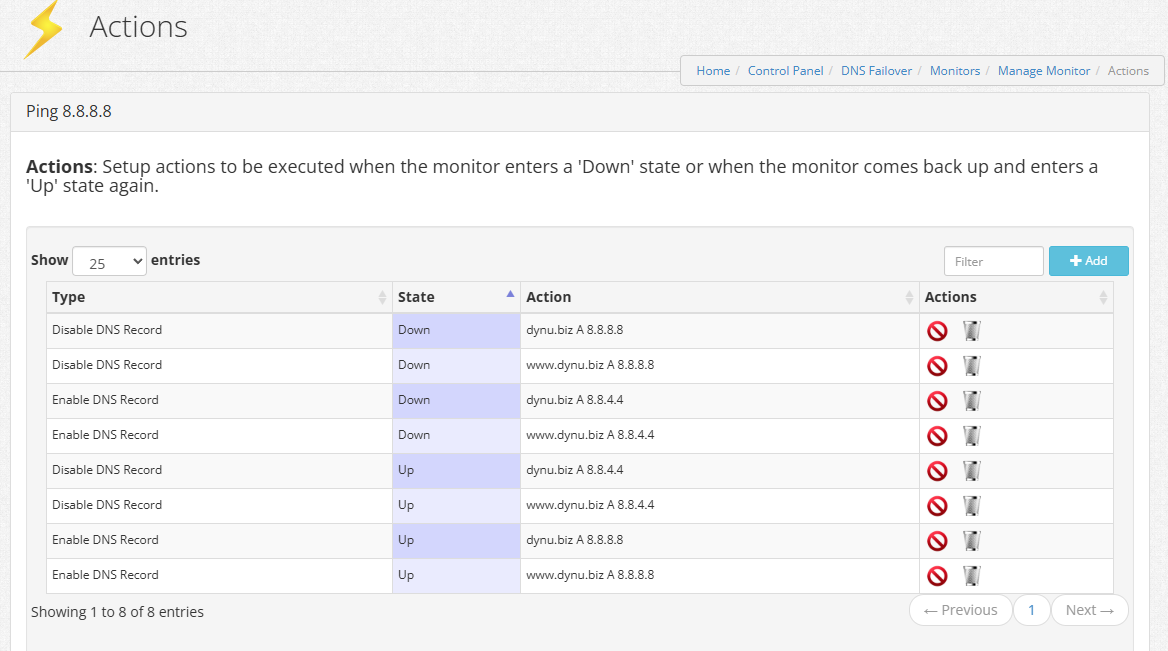
Once all 8 actions are saved, the Actions list should show the following entries:
How does IP failover work?
The approach uses two A records per hostname — one pointing to the primary IP (active by default) and one pointing to the backup IP (inactive by default). When a monitor detects that the primary server is down, failover actions automatically disable the primary A records and enable the backup A records. When the primary server recovers, the reverse actions restore the original configuration.
How to configure IP failover?
Follow these steps to set up failover between a primary and backup IP address for your domain and its www subdomain.
Step 1 — Add the backup A records in Aliases
Log into the control panel, go to Dynamic DNS Services and click on your domain name to open the Manage Dynamic DNS Service page. Then click on Aliases.
You should already have active A records pointing to your primary IP for both your root domain and www subdomain. You now need to add two additional A records pointing to your backup IP — one for the root domain and one for www.
For each backup A record, fill in the following fields and click + Add Alias:
Alias Name Enter the subdomain prefix. Use www for the www record, or leave blank for the root domain (shown as *).
TTL Set a low TTL such as 120 seconds to allow DNS changes to propagate quickly during a failover event.
Type Select A - IPv4.
IPv4 Address Enter your backup server's IP address (e.g., 8.8.4.4).
Once added, the backup A records will appear in the Aliases list highlighted in red, indicating they are inactive. The primary A records remain active. You should now have four A records in total:
- dynu.biz — A — 8.8.8.8 — Active (primary)
- www.dynu.biz — A — 8.8.8.8 — Active (primary)
- dynu.biz — A — 8.8.4.4 — Inactive (backup)
- www.dynu.biz — A — 8.8.4.4 — Inactive (backup)
Step 2 — Open the Actions page for your monitor
Go to
DNS Failover
and click on
Monitors.
Select the monitor you want to configure by clicking on its name. On the
Manage Monitor page, click the
Actions
button.
You will configure a total of 8 actions: 4 triggered when the monitor goes Down, and 4 triggered when it comes back Up.
Step 3 — Add "Down" actions to switch to the backup IP
Click + Add and configure the following four actions, one at a time. All four use State: Down.
Action A — Disable the primary A record for the root domain:
State Down
Action Type Disable DNS Record
Domain Name dynu.biz
Resource Record Type A - IPv4
Resource Record dynu.biz - 8.8.8.8 [Active]
Same as Action A, but set Resource Record to www.dynu.biz - 8.8.8.8 [Active].
Action C — Enable the backup A record for the root domain:
State Down
Action Type Enable DNS Record
Domain Name dynu.biz
Resource Record Type A - IPv4
Resource Record dynu.biz - 8.8.4.4 [Inactive]
Same as Action C, but set Resource Record to www.dynu.biz - 8.8.4.4 [Inactive].
Click + Add after configuring each action.
Step 4 — Add "Up" actions to restore the primary IP
Click + Add and configure the following four actions. All four use State: Up.
Action E — Disable the backup A record for the root domain:
State Up
Action Type Disable DNS Record
Domain Name dynu.biz
Resource Record Type A - IPv4
Resource Record dynu.biz - 8.8.4.4 [Inactive]
Action F — Disable the backup A record for www:
Same as Action E, but set Resource Record to www.dynu.biz - 8.8.4.4 [Inactive].
Action G — Enable the primary A record for the root domain:
State Up
Action Type Enable DNS Record
Domain Name dynu.biz
Resource Record Type A - IPv4
Resource Record dynu.biz - 8.8.8.8 [Active]
Action H — Enable the primary A record for www:
Same as Action G, but set Resource Record to www.dynu.biz - 8.8.8.8 [Active].
Click + Add after configuring each action.
Step 5 — Verify your configuration
Once all 8 actions are saved, the Actions list should show the following entries:
- Disable DNS Record — Down — dynu.biz A 8.8.8.8
- Disable DNS Record — Down — www.dynu.biz A 8.8.8.8
- Enable DNS Record — Down — dynu.biz A 8.8.4.4
- Enable DNS Record — Down — www.dynu.biz A 8.8.4.4
- Disable DNS Record — Up — dynu.biz A 8.8.4.4
- Disable DNS Record — Up — www.dynu.biz A 8.8.4.4
- Enable DNS Record — Up — dynu.biz A 8.8.8.8
- Enable DNS Record — Up — www.dynu.biz A 8.8.8.8
- Automatically switch to the backup IP (8.8.4.4) when the monitor goes Down, disabling the primary records and enabling the backup records.
- Automatically restore the primary IP (8.8.8.8) when the monitor comes back Up, disabling the backup records and re-enabling the primary records.